
Personal Wiki with PmWiki
For years, I’ve been experimenting with various kinds of “personal wiki.”
Ranging from scattered .txt files, to MediaWiki installed on localhost, to Obsidian, to building my own personal wiki app, to PmWiki, to Quartz.
All of them have their own ups and downs.
It’s hard to search and navigate .txt files. MediaWiki is way too big for a personal wiki; its PHP startup time takes a very long time. Obsidian has also become quite “big” recently thanks to various feature additions. My own personal wiki app is okay-ish, but there are plenty of mission-critical functionalities that I haven’t implemented yet, and I’m now too lazy to implement them. PmWiki is nice and small, but I haven’t experimented with it further. Quartz is nice, since I can upload it to my GitHub Pages with ease (using batch scripting).
Now, I want to experiment more with PmWiki.
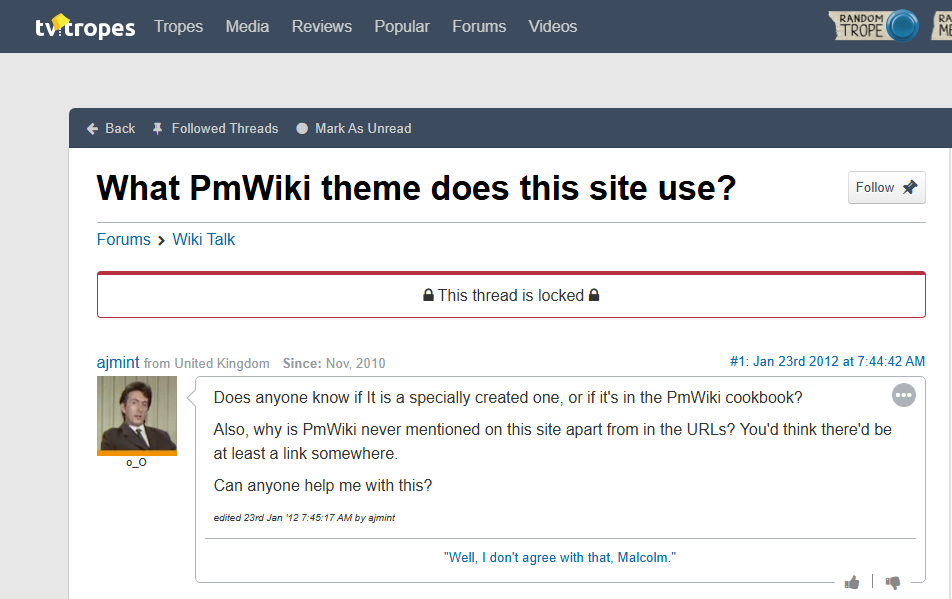
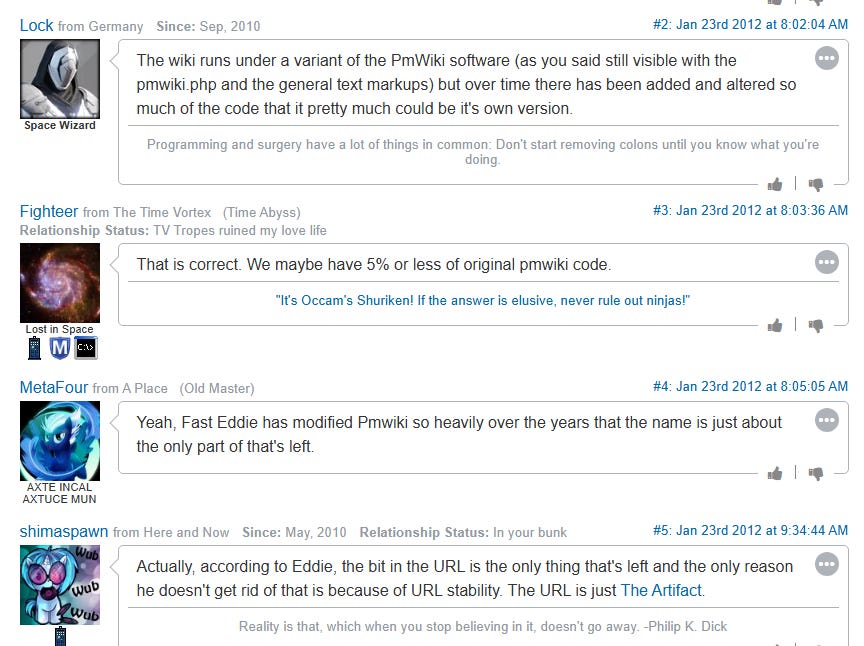
Back then, I abandoned PmWiki because it was too complex to use. There are plenty of cryptic things that you have to do in order to achieve even the simplest functionality. There’s no simple button. You need to know the “hacks” for its basic functionality. Using PmWiki is a constant battle of Google searching, looking up tutorials and documentation on how to do this and that.
But now, I can simply ask ChatGPT how to do things, and it will answer with “hacks” on how to use PmWiki properly. That’s why I’m giving it a second chance now.
For example:
How do you delete an article?
“The most direct method is done from the page itself. Open the page you want to remove, click Edit, then delete all of its content. After that, type the word delete (exactly that, usually on its own line or anywhere in the text), and save the page. PmWiki interprets that as a command to remove the page file entirely rather than just saving it empty.”
Or, how do you disable mandatory login for page editing?
“To explicitly allow anyone (even without login) to edit, you can set: $DefaultPasswords[’edit’] = ‘’; in your config.php.”
Or, how do you list all pages?
“You can create a page (for example, “AllPages”) and put this inside: (:pagelist group=* list=normal:).”
Or, how to display “What links here” like in MediaWiki?
If you want this to appear automatically on every page, edit Site.SideBar, then add something like:
!! Backlinks
(:pagelist link={*$FullName} fmt=title:)
Or, how to change PmWiki’s default timezone?
Open local/config.php and add something like:
date_default_timezone_set(’Asia/Jakarta’);
Or, how can I make sure that the page title is rendered correctly with spaces? (Right now, it is forced into CamelCase.)
By default, page names are stored in WikiWord (CamelCase), and the displayed title is derived from that
The simplest and most modern approach is to disable WikiWords entirely and rely on free-form page titles. In your config.php, add: $EnableWikiWords = 0;
This lets you create and link pages using normal names like : [[My page title]]
If you already have existing CamelCase pages and just want them to display nicely, you can enable automatic spacing in titles : $SpaceWikiWords = 1;
If you want even more control, you can explicitly define the page title inside the page content : (:title My proper page title with spaces:)
This overrides the displayed title regardless of the page name.
Or, since manually clicking the “edit” button at the top right of the screen is bothersome, can we add a shortcut for that?
Well, ChatGPT said there’s no built-in PmWiki feature to add a shortcut, so I have to be creative here.
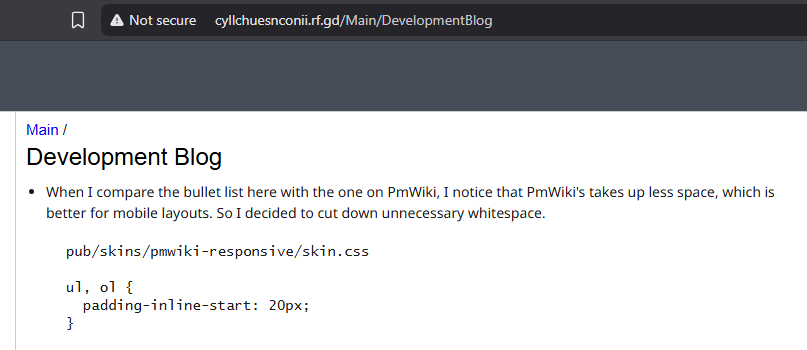
So I added this small JavaScript snippet to /pub/skins/pmwiki-responsive/skin.js.
document.addEventListener("keydown", function (event) {
    // Check for Ctrl + ,
    if (event.ctrlKey && event.key === ",") {
        event.preventDefault(); // prevent default browser behavior
        window.location.href = window.location.href + "?action=edit";
    }
});
Or, how to deploy it on a PHP server?
I didn’t use ChatGPT this time. I simply zipped up my entire local instance, uploaded it, and extracted it on the server. Then I tried to figure out how to make it work by myself (it didn’t work at first).
The first problem I managed to fix was hidden somewhere in local/config.php. In the script URL, I removed the directory part so it would use the main root folder instead.
From:
$ScriptUrl = $UrlScheme.’://’.$_SERVER[’HTTP_HOST’].’/pm’;To:
$ScriptUrl = $UrlScheme.’://’.$_SERVER[’HTTP_HOST’];The second problem was in the root folder’s .htaccess. I modified the RewriteBase from /pm to /.
And now it’s working. My own personal wiki is now online.
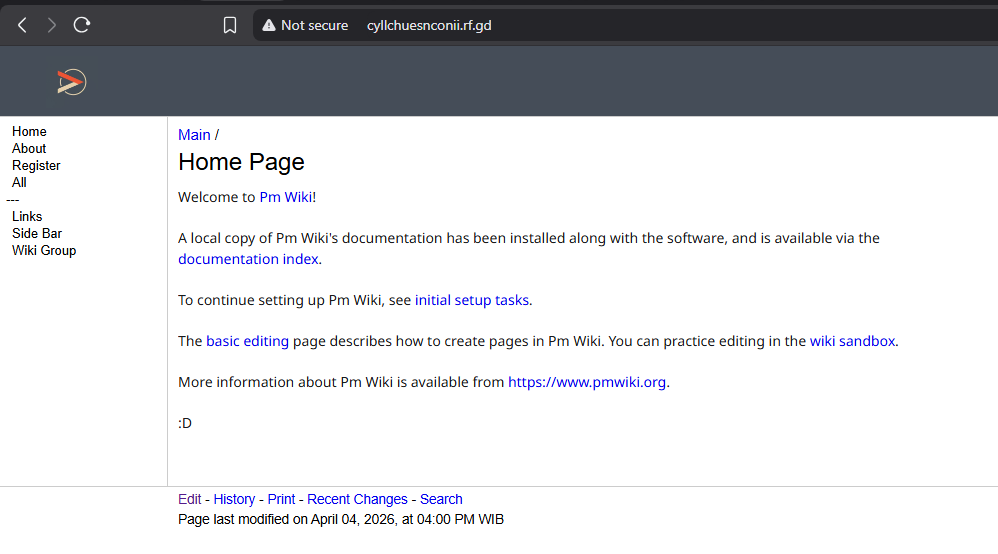
Now, let’s figure out what content I should show to the world... hmm.
TvTropes sometimes has very long pages. To mitigate this, they implemented a “folder” feature to group and collapse parts of the content. This functionality is not built into PmWiki.
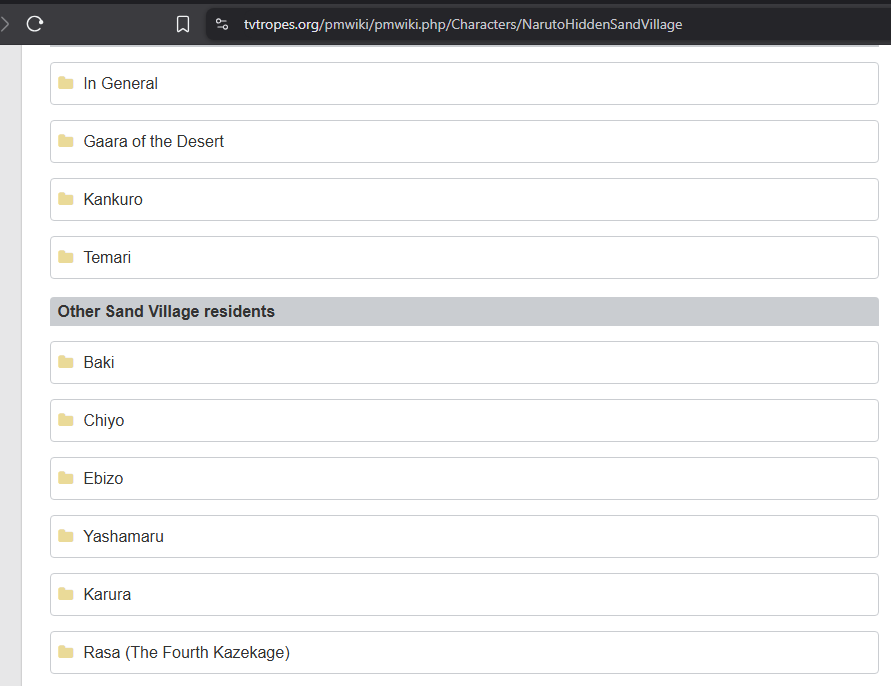
At first, I wondered if there was an open-source PmWiki extension that already provided this feature. After a quick search, it turned out there wasn’t, so I really had to build it myself.
First, create custom.css in the pub/ directory.
.pmwiki-folder {
  margin: 8px 0;
  border: 1px solid #444;
  border-radius: 6px;
  overflow: hidden;
}

.pmwiki-folder-title {
  background: #2d2d2d;
  color: #fff;
  padding: 8px;
  cursor: pointer;
  font-weight: bold;
}

.pmwiki-folder-title:hover {
  background: #3a3a3a;
}

.pmwiki-folder-content {
  padding: 8px;
  background: #1e1e1e;
}
Second, create custom.js in the pub/ directory.
function toggleFolder(el) {
  var content = el.nextElementSibling;
  if (content.style.display === "none") {
    content.style.display = "block";
  } else {
    content.style.display = "none";
  }
}
Third, define the markup tag in local/config.php, and include both custom.css and custom.js.
$HTMLHeaderFmt['folder-js'] = "<script src='\$PubDirUrl/custom.js'></script>";
$HTMLHeaderFmt['folder-css'] = "<link rel='stylesheet' href='\$PubDirUrl/custom.css'>";
// Define the [[folder:Title]] opening tag
Markup('folder-open', 'directives',
'/\\[\\[folder:(.*?)\\]\\]/i',
function($m) {
$title = htmlspecialchars(trim($m[1]), ENT_QUOTES);
return Keep("<details class='tvt-folder'>\n<summary><span class='folder-icon'>📁</span> {$title}</summary>\n<div class='folder-content'>\n");
}
);
// Define the [[/folder]] closing tag
Markup('folder-close', 'directives',
'/\\[\\[\/folder\\]\\]/i',
function($m) {
return Keep("\n</div>\n</details>");
}
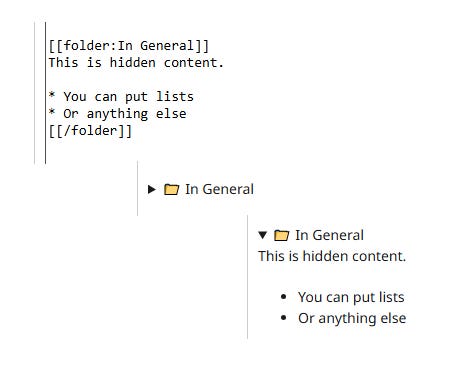
);Here’s how to use it:
I’m currently hosting my PmWiki instance on InfinityFree for free (though probably not infinitely).
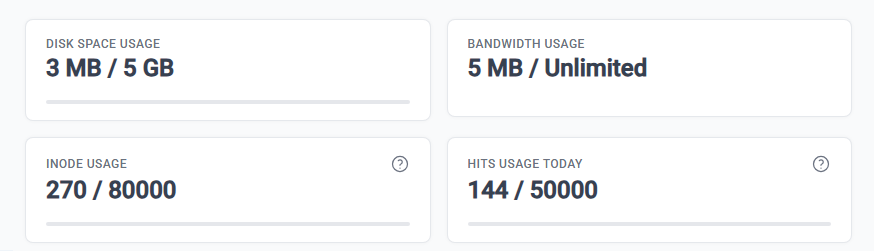
Since PmWiki uses a “one file per article” storage structure, I’ll likely run out of inodes before disk space.
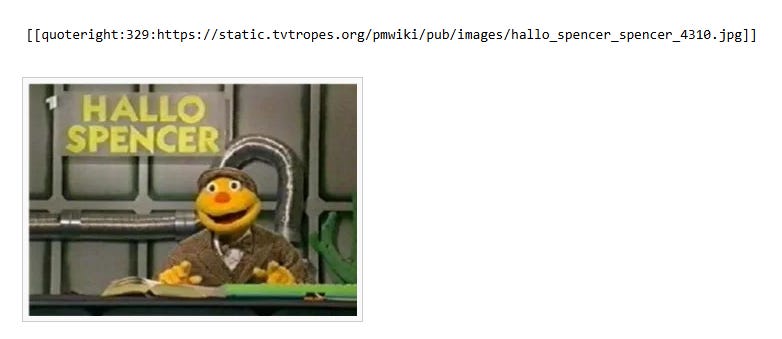
This time, I want to add images. Again, I reverse-engineered how PmWiki handles its images.
// local/config.php
Markup('quoteright', 'inline',
  '/\[\[quoteright:(\d+):([^\]]+)\]\]/',
  function($m) {
    $width = $m[1];
    $url = $m[2];
    // We use a standard container; you can adjust the padding-top
    // or remove it if you prefer a simpler box.
    return Keep('<div class="quoteright" style="width:'.$width.'px;">
                    <div class="lazy_load_img_box" >
                        <img src="'.$url.'" class="embeddedimage" border="0" width="'.$width.'">
                    </div>
                 </div>');
  }
);
/*pub/custom.css*/
.quoteright {
float: right;
margin: 0 0 10px 10px;
border: 1px solid #ccc;
padding: 5px;
background: #f9f9f9;
}
.lazy_load_img_box {
position: relative;
display: block;
overflow: hidden;
}
.embeddedimage {
display: block;
max-width: 100%;
height: auto;
}/* pub/skins/pmwiki-responsive/skin.css */
/*remove the default wikitext img width 200 px*/
#wikitext img {
/*width:200px;*/
}
So far, I’m editing that site using the superadmin password defined in config.php.
$DefaultPasswords[’admin’] = pmcrypt(’yourpasswordhere’);
It turns out that if you keep editing like this, you will expose your own IP address on the history page. I don’t like that. Even Wikipedia recently banned such practice and switched to a “temporary account” system instead.
So, I’m going to make my own temporary account instead.
According to this guide, first I have to include_once the authuser.php script into config.php (which I have already done; without that, I wouldn’t be able to use the superadmin password to begin with). Then, I have to go to the SiteAdmin.AuthUser page and add this line:
username: (:encrypt password:)
And it’s done. Now I can use this account to edit the page.
But it seems that in order to edit the SiteAdmin.AuthUser page, I still have to use the superadmin password. I can’t edit it using this newly created account.
In films, there is usually a disclaimer: “This is a work of fiction. Any similarity to actual persons, living or dead, or actual events is purely coincidental.”
I always wondered whether such short sentences could free the film production team from a huge burden of responsibility if something went wrong after the publication of the film. It turns out the answer is kind of yes.
A quote taken from here says: “A justice in the case noted that the studio might have stood a better chance had they incorporated a disclaimer stating the exact opposite: that the film was not intended as an accurate portrayal of real people or events. Apparently overcautious in the wake of the landmark lawsuit, the film industry slapped that wording on everything.”
Now, a similar case is happening in the AI chatbot industry. They can’t guarantee that their chatbot responses are 100% accurate, so they simply add a disclaimer like “... can make mistakes. Please double-check responses.”
Now I’m also intrigued to add a similar disclaimer to this site, which I did by modifying the pub/skins/pmwiki-responsive/skin.tmpl file, around the “wikifoot-lastmod” div.
“This site can make mistakes. Please double-check critical information.”
Recently, I found a visual bug that caused large images to appear clipped when viewed on mobile.
To fix this, add this line at the very top of pub/skins/pmwiki-responsive/skin.css.
@media (max-width: 585px) {
  .quoteright{
    max-width: calc(100% - 14px) !important;
  }
}
I also decided that I needed more space for text. There was too much unused whitespace in the desktop view, so I modified the #wikitext max-width from 750px to 800px.
/* pub/skins/pmwiki-responsive/skin.css */
#wikitext {
max-width: 800px;
}
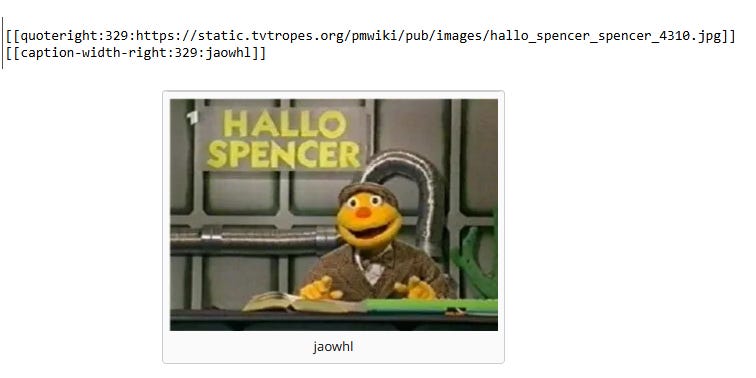
To complement the image feature, I added an image caption feature.
// local/config.php
Markup(
    'caption-width-right',             // Unique ID for this markup rule
    'inline',                          // When to process this (inline formatting)
    '/\[\[caption-width-right:(\d+):(.*?)\]\]/', // The Regex pattern to match
    '<div class="acaptionright" style="width:$1px;">$2</div>' // The HTML replacement
);
/* pub/skins/custom.css */
.quoteright+*>.acaptionright, .quoteright+.acaptionright {
border-radius: 0 0 3px 3px;
box-shadow: -1px 0 0 0 #cacdd1, 0 1px 0 0 #cacdd1, 1px 0 0 0 #cacdd1;
margin-top: -12px;
}
.acaptionright, .floatboxright, .quoteright {
background: #fafafa;
border-left: 6px solid #fafafa;
border-radius: 3px;
border-right: 6px solid #fafafa;
box-shadow: 0 0 0 1px #cacdd1;
clear: right;
float: right;
font-size: 13px;
line-height: 1.512em;
margin: 1px 1px 5px 13.5px;
max-width: 350px;
padding: 6px 0;
position: relative;
text-align: center;
width: inherit;
z-index: 2;
}
So far, everything is stable. I want to upload it to GitHub as a ‘PmWiki fork.’
So I downloaded all the files from the FTP directly into my XAMPP htdocs folder. Then I accessed it via localhost.
It didn’t work.
It didn’t work because the files from the deployed server assume they will use the root domain, while on my localhost they are actually located inside a subpath.
To fix that, open the .htaccess file in the root folder, then change RewriteBase / to RewriteBase /subpath.
Now it’s working.
Yeah, the homepage is working, but the links are not.
There’s a small change we need to make to fix this.
Go to local/config.php.
Change:
$ScriptUrl = $UrlScheme.’://’.$_SERVER[’HTTP_HOST’];
to:
$ScriptUrl = $UrlScheme.’://’.$_SERVER[’HTTP_HOST’].’/subpath’;
And finally, done.